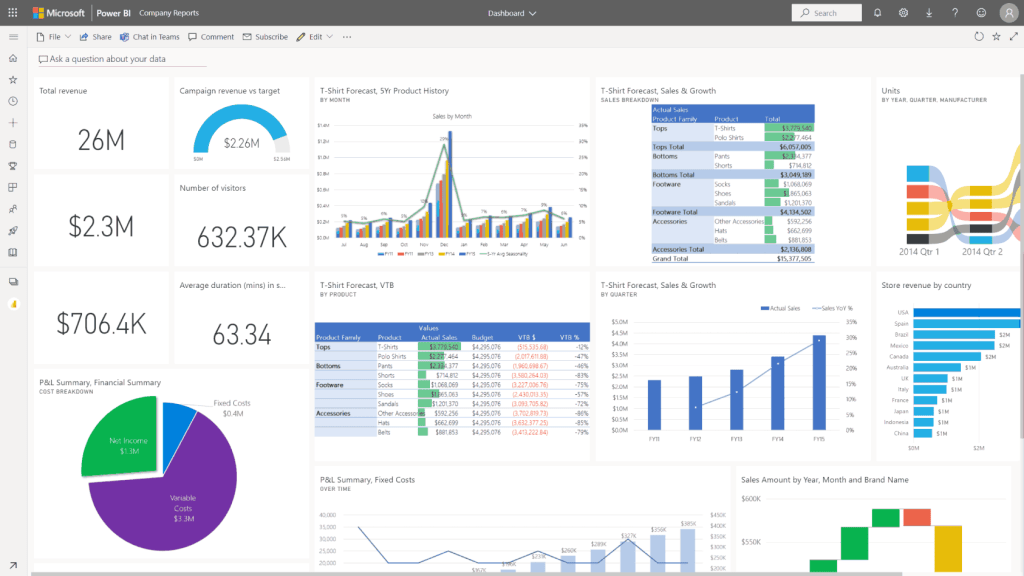
In essence, there are two approaches to consider when implementing a Financial Reporting framework. Both would involve the use of Power Query to shape the data from its source into a format that would be easy to base financial reports from. Power Query exists as an add-on to both Excel, and Power BI desktop and each of these forms the basis of the two strategies.
Use Power Query from Excel
Method:
- Use Power Query in Excel to connect to and Shape the Data into Fact and Dimension Tables.
- Use Power Pivot in Excel to connect the tables together (building relationships).
- Use Power Pivot in Excel to create all the Measures that you would need so that they could be used in CUBEVALUE formulas.
- Save the resulting “Model File” to a location that everyone could use as a starting point of a financial report that they want to create.
- Then when someone wants to build a report, they would download a copy of the file, save it as a local copy, and then start building their report in Excel.
- Once their report is built, they would need to Refresh it each time they wanted updated information reflected.
Advantages:
- This method would not require any Power BI Licenses, and as such, is effectively a completely free method.
- Users could add additional data to the defined data model, if necessary, without having to approach an administrator of a dataset.
- No need for the User of the report to be on-line to view the report (unless they need to refresh it).
- No need to introduce Power BI Gateways to refresh the data, as the data can be refreshed directly at will from the spreadsheet reports.
Disadvantages:
- Limitations in Power Pivot makes it impossible to build “manual tables” that might be needed to accommodate some data requirements (like hierarchical dimensions) without creating the inside the Excel “Model File”;
- The data for each Report as well as the “Model File” would essentially be a duplicate of the data
- Because the data exists in the file for each report, the files may be large, and difficult to share/email.
- Different Excel reports could have different results based on when each model was refreshed.
- If Data Model changes are made to the Model file, these are not carried through to the report files created using the Model file,
- Could result in numerous different versions of the Data Model,
- Cannot implement an automatic refresh for the report files on a central platform.
Use Power Query from Power BI to build a Dataset
Method:
- Use Power Query in Power BI Desktop to connect to and shape the Data into Fact and Dimension Tables.
- Use Power BI Desktop to connect the tables together (building relationships).
Use Power BI Desktop DAX formulas to create the Measures that you need in the model. - Publish the resulting Dataset to the Power BI Service into a shared Workspace.
- Then when someone wants to create an Excel financial report based on the Dataset, they could connect to the Dataset from Excel.
- Users of the report would not need to refresh the data, is the Excel spreadsheet would be “live connected” to the Power BI Dataset.
Advantages:
- Easy to create Manual Tables (where needed) inside the Power BI Dataset.
- No duplication of data – all the data remains in the Power BI Dataset, and the Excel Reports only contain a connection to the data.
- An automatic refresh schedule can be setup to refresh the data on a regular (up to 8 times a day) basis.
- All reports connected to the same data, no need to refresh, and all will display same results for same measures.
- Because data does not exist in the Excel files, the files will be relatively small and easy to email to other users.
- Changes to the Dataset will be available to all Excel reports connected to it and can benefit from the changes.
- Only one version of the dataset, results in a standardised approach, and only one version of the Data Models and its Measures.
- Access to the Data can be managed in the Power BI Service using Workspaces.
Disadvantages
- This approach would require a Power BI license for each Report creator and Report User.
- Users cannot refresh the data manually unless they have access to do so from the Power BI Service.
- Changes to the Data Model can only be done to the Dataset, and as such, change requests must be directed to a central point (this could also be an advantage).
For more information or to set up a short introduction to Power BI, Power Query, please feel free to Contact Us.
Yours in Tech,
Seeside Extended